
Skip to content

Using SECURITY.E2 for Password Reset and Printer Reset in RoverERP

Administration

Problem Statement

Users may need to reset their own passwords or resolve issues where newly added printers in Windows do not appear in RoverERP.


Symptoms

  • Users are unable to change their own passwords and may receive an authorization error
  • Printers added in Windows are not showing as available in RoverERP

Cause

  • Password reset permissions may be restricted by system security settings
  • The list of available printers in RoverERP may not update automatically after adding a new printer in Windows

Resolution Steps

Resetting User Passwords

  1. Access the Change Password Option

    Open SECURITY.E2 in RoverERP and select the Change Password option.

  2. Follow the Prompts

    Enter the required information to reset your password.

  3. Authorization Error

    If you receive a message stating you do not have authorization to change the password, contact your system administrator for assistance.

Resetting Printers

  1. Add Printer in Windows

    Ensure the printer has been successfully added in Windows.

  2. Reset Printers in RoverERP

    Open SECURITY.E2 in RoverERP and select the Reset Printers option.

  3. Verify Printer Availability

    Check that the newly added printer now appears as available in RoverERP.
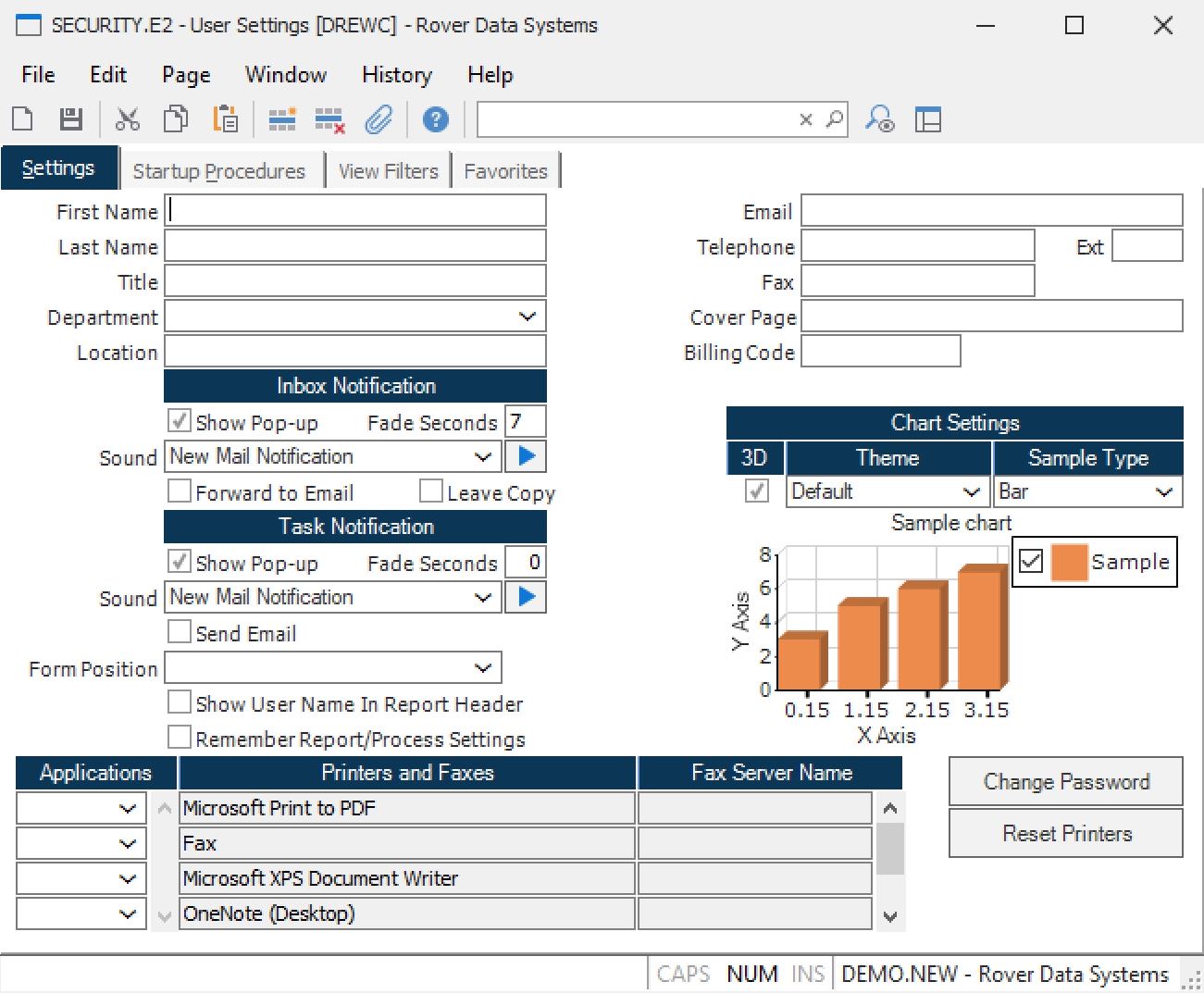
Security E2


Verification

  • [ ] Confirm that users can reset their passwords if authorized
  • [ ] Ensure that newly added printers in Windows are visible and selectable in RoverERP after performing a printer reset

Note

  • Only users with the appropriate permissions can change their own passwords
  • Contact your system administrator if you encounter authorization issues or if printers still do not appear after resetting

Additional Information

  • For persistent issues with password resets or printer availability, contact RoverERP support
  • Regularly review user permissions and printer configurations to maintain system accessibility