
Appearance
Using PURGE.CONTROL to Archive or Purge Data in RoverERP (For Versions Prior to 11-14-23)
2 min read
AdministrationResolution Steps
Note: The PURGE.CONTROL command only applies to customers on a version prior to 11-14-23. In later versions, use ARCHIVE.CONTROL.
Access PURGE.CONTROL
Open the PURGE.CONTROL procedure in RoverERP. (Replaced with Archive.Contrtol)
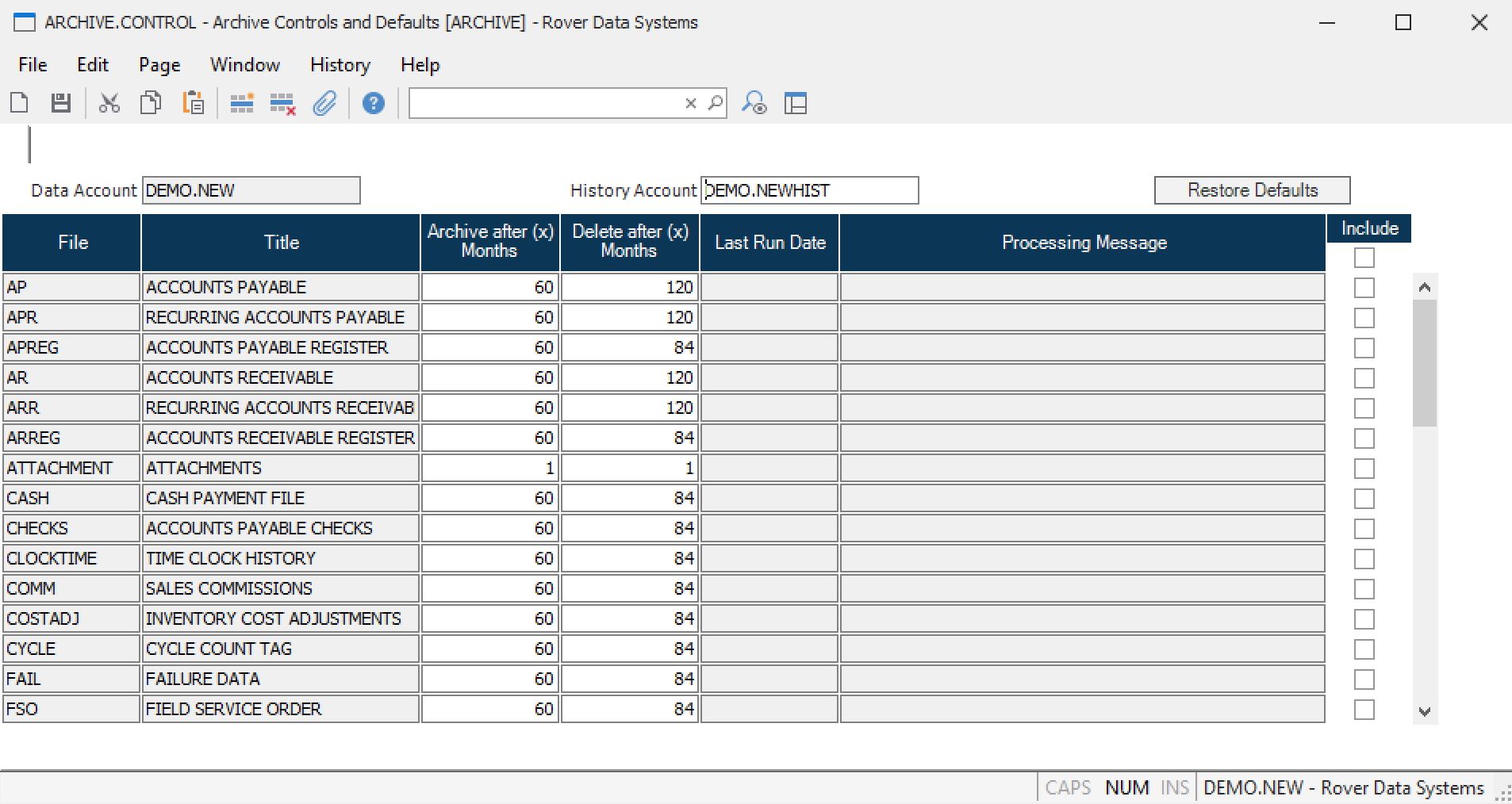
Specify the History Account
In the first field, enter the name of the history account where archived data should be stored.
- If a history account is entered, data will be written to this account before being deleted from the source account
- Each data account should have its own corresponding history account
- If no history account is entered, data will be purged (deleted) without being archived
Select Files to Archive or Purge
Use the lookup from the file name field to select files eligible for archiving or purging.
Set Cutoff Date and Include Files
Enter a cutoff date for data to be archived or purged. Check the include boxes for the files you want to process.
Run the Purge Process
You can run the purge process (for example, PARTS.P2) directly from the PURGE.CONTROL screen or independently.
- If run from PURGE.CONTROL and a history account is specified, data will be archived before deletion
- If run outside of PURGE.CONTROL, data will be deleted without archiving, even if a history account is specified in the control record
Repeat for Different Files and Retention Periods
To keep different amounts of history for different files, run PURGE.CONTROL multiple times with different settings, such as 2 years for IT and register files and 5 years for sales files.