Appearance
Setting Up Batch Services in RoverERP
3 min read
AdministrationService Configuration
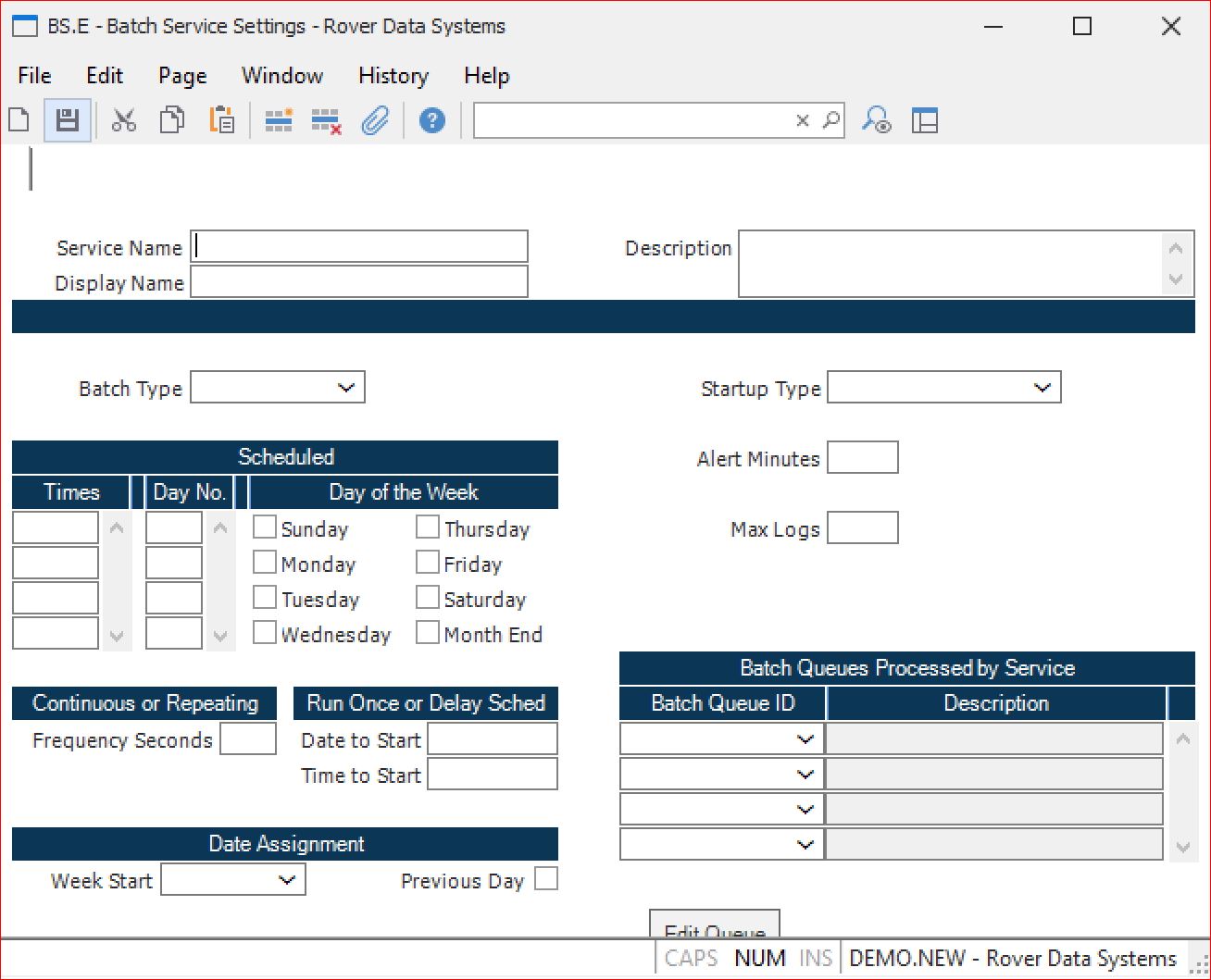
Enter the necessary information to set up (or make necessary changes in amendment mode) for a batch service. The information entered on this main display will be used for the other procedures in the SERVICE.CONTROL job flow (i.e., service editing screens).
Service Name
Enter a short descriptive name for the service.
Display Name/Description
Enter a name and description for the service.
Batch Type
The Batch Type must be set to Scheduled, Continuous, Repeating, or Run Once. The following are details for each batch type:
Scheduled
The Times field must be set to one or more times at which the process is to be started. Times are specified in 24-hour format. You must also specify a Day# of the month and/or check one or more days or Month End.
Continuous
The Frequency Seconds must be set. Frequency seconds indicates how often it should check for new jobs that have been submitted. Continuous batch processes wait for users to submit jobs to be run.
Repeating
A service which will repeat as defined by the user. Frequency Seconds indicates how often the job(s) should be run.
Run Once
The specified service will run once and only once as defined.
Date Parameter Usage
Some jobs in a batch may have date parameters that need to change each time the batch is run. Dates may be specified with a pseudonym in place of the date indicating which date should be used when the job is run:
- @SD – the current date
- @WSD – week start date
- @WED – week end date
- @MSD – month start date
- @MED – month end date
- @YSD – year start date
- @YED – year end date
Note: In order to properly assign these dates, the Week Start must be specified as one of the days of the week, typically either Sunday or Monday. The Previous Day checkbox indicates if the dates should be determined based on the date before the current date. For example, if the batch service is set to start at 1:00 A.M. but the jobs in the batch need to be run for the previous date, check this box.
Startup Type
Select the startup condition for the service when M3 is started. Valid selections are Automatic, Manual, and Disabled. If the service is ongoing, select the Automatic condition.
Logon As/Password
Enter the user and password for the job. The user assigned will require the rights necessary (if any exist) for executing the job. If the user profile does not exist, the system will create a new profile.
Batch Queue ID
This field defines which job queues the service is to process. You may select existing queues from the drop-down list or select <create new queue> to define a new queue. An existing queue can be edited by clicking the Edit Queue button.