Appearance
Resolving USAGE.P1 Not Capturing Data for a Specific Period in RoverERP
1 min read
TroubleshootingResolution Steps
Confirm Batch Scheduling
- Open SERVICE.CONTROL from the command prompt
- Locate the Nightly or Monthly batch
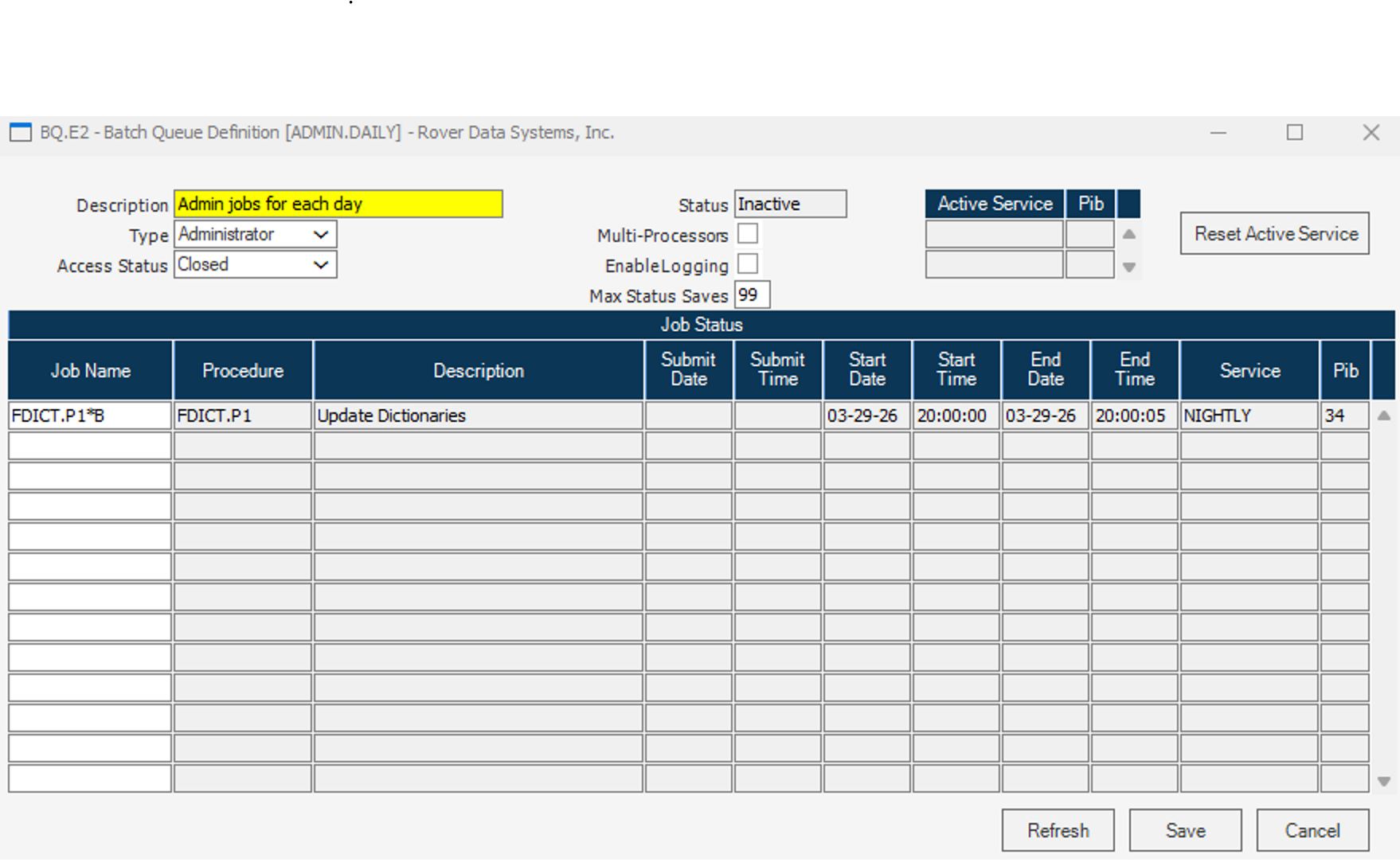
- Highlight the batch and click Properties > More Settings > Edit Queue
- Check if the USAGE.P1 job is listed in the Batch Queue Definition
Check Service Status
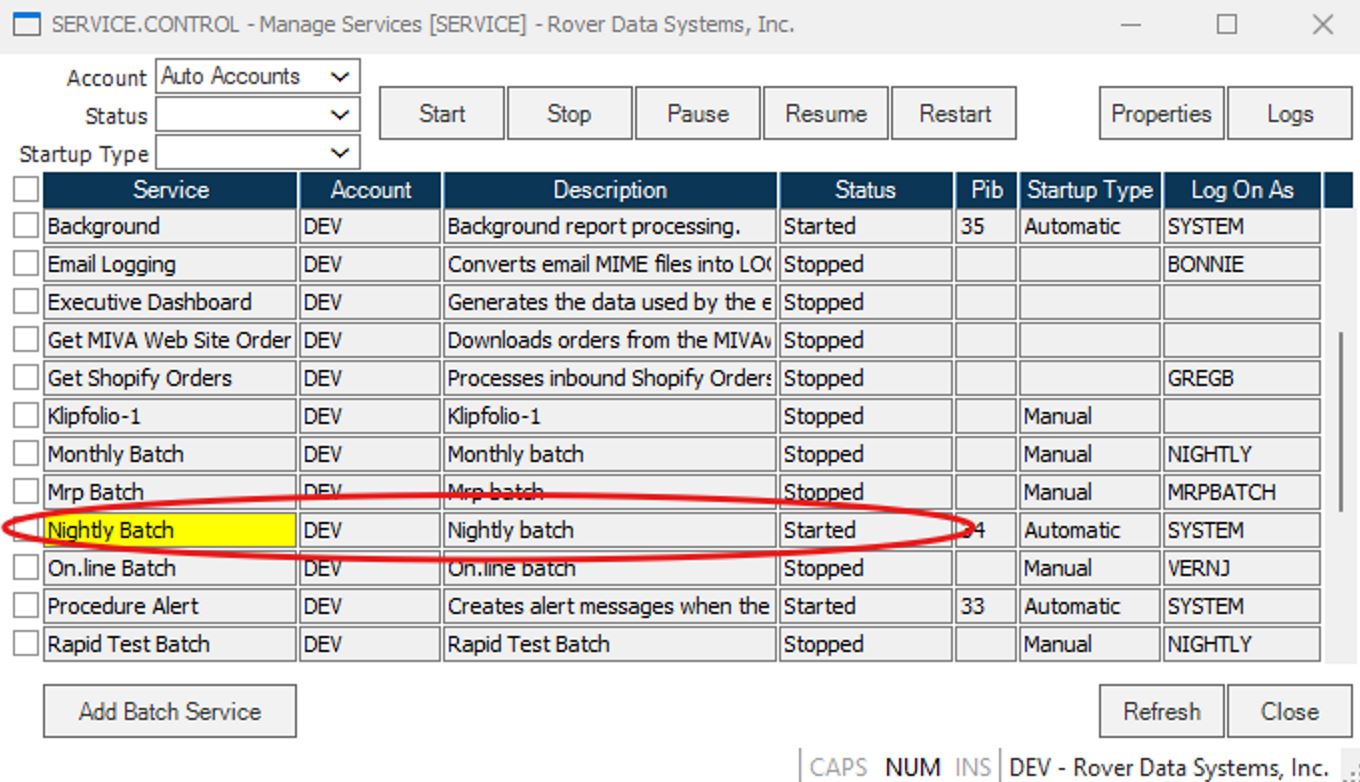
- Verify that the service responsible for running the batch is in a Started status
- If the service is not running, start it
Manually Run USAGE.P1 for Missed Periods
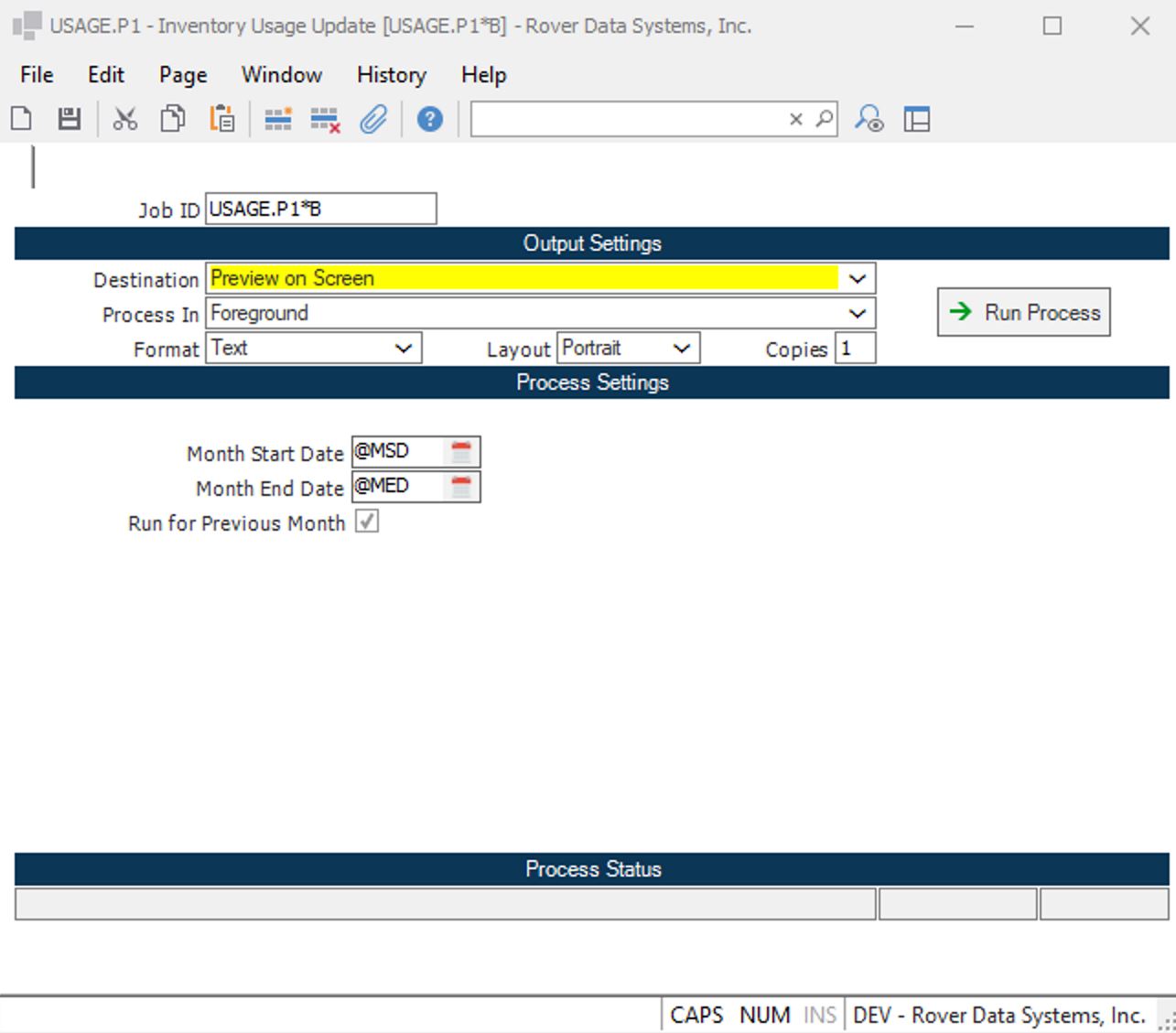
- If the service was not running or the job was missed, USAGE.P1 must be run manually for the affected period(s)
- At the command prompt, type USAGE.P1
- Provide the appropriate Job ID and set the dates for the period that needs to be processed
- If multiple periods are missing, process each period one at a time