
Skip to content

Resolving "Invalid Username/Password" Error for a Single User in RoverERP

Troubleshooting

Problem Statement

A user receives an "Invalid Username/Password" error when attempting to log in to RoverERP. This issue may be related to the user's account status on the Windows host server.


Symptoms

  • A single user cannot log in to RoverERP and receives an "Invalid Username/Password" error
  • Other users are able to log in without issue
  • The problem persists even when the correct credentials are entered

Cause

  • User accounts for RoverERP are created within RoverERP, but a corresponding Windows account is also created on the host server upon first login
  • If the Windows account is locked out or disabled, the user will not be able to log in to RoverERP

Resolution Steps

  1. Check the User Account on the Windows Host Server

    • Open Computer Management on the host server
    • Expand the folder Local Users and Groups
    • Click on Users
    • Locate the user experiencing the issue
    • Right-click the user and select Properties
    • Ensure that the account is not locked out or disabled
  2. Unlock or Enable the Account if Needed

    • If the account is locked out, uncheck the Account is locked out box
    • If the account is disabled, uncheck the Account is disabled box
    • Click Apply and OK to save changes
  3. Attempt Login Again

    Have the user try logging in to RoverERP once the account status has been corrected.
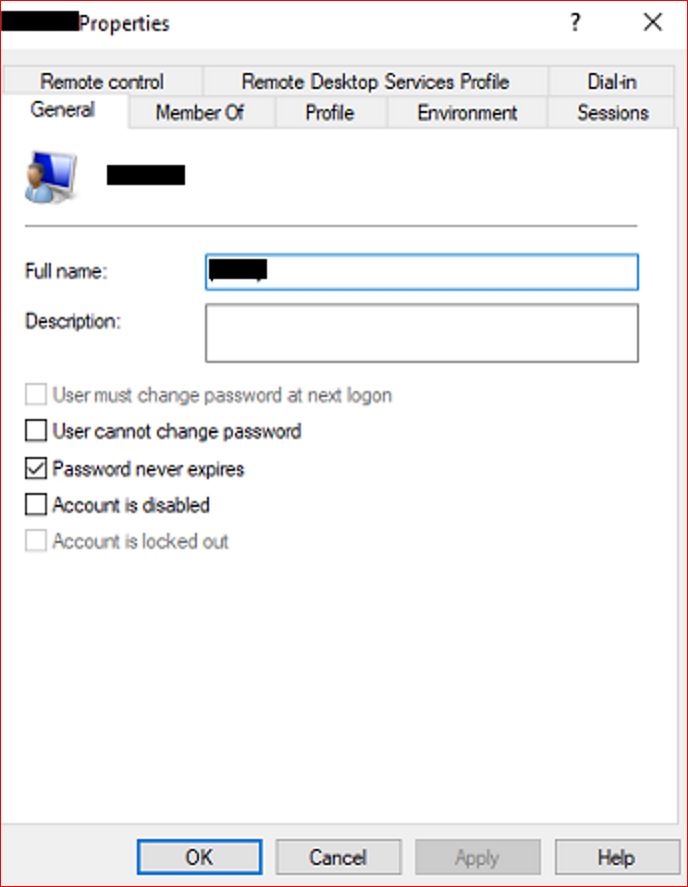
Password Error


Verification

  • [ ] The user is able to log in to RoverERP without receiving the "Invalid Username/Password" error
  • [ ] The account remains active and accessible

Note

  • For SaaS clients, this issue will be handled by Zumasys Support
  • Always verify both RoverERP and Windows account status when troubleshooting login issues

Additional Information

  • If the issue persists after confirming the account is active, contact RoverERP support for further troubleshooting
  • Document any changes made to user accounts for audit purposes