
Appearance
How to Check Software Versions in RoverERP
1 min read
AdministrationAccess the Main Menu
Open RoverERP and navigate to the main menu.
Go to Help > About
Click on Help in the menu bar and select About from the dropdown menu.

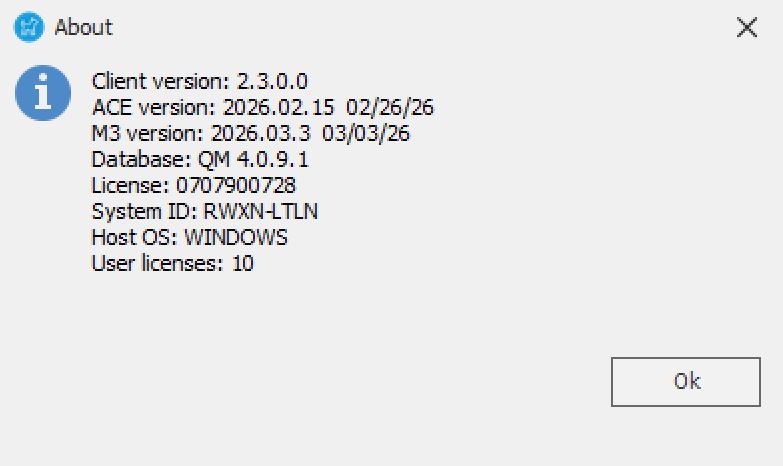
View Version Information
A dialog box will appear displaying the following version details:
- Client version
- ACE version
- M3 version
- Database (QM) version
Additional Information
- If you are unable to access the version information, contact your system administrator or RoverERP support for assistance