
Appearance
Application Error Upon Logging In (Legacy Client)
1 min read
Administration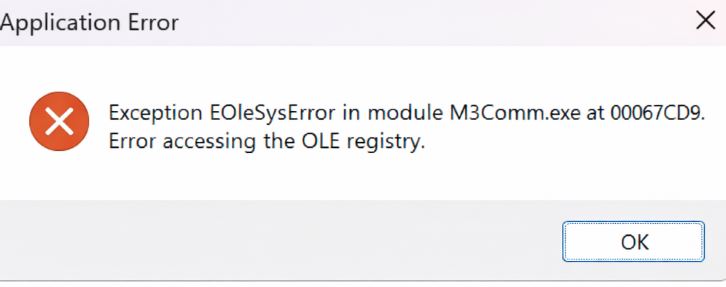
Resolution Steps
1. Repair the M3 Client Installation
- Open Control Panel > Programs > Uninstall a program
- Locate Millenium 3 in the list of installed programs
- Click Change
- Select the Repair option
- Follow the prompts to complete the repair process
2. Reinstall the M3 Client (If Repair Fails)
If repairing the installation does not resolve the issue:
- Uninstall the M3 client completely
- Download or obtain the latest version of the M3 client installer
- Perform a fresh installation of the client
Verification
- [ ] After repairing or reinstalling, attempt to log in to M3
- [ ] Confirm that the error message no longer appears and that the application launches successfully
Note: Administrative privileges may be required to repair or reinstall the M3 client. If the issue persists after a fresh install, consult your IT administrator or RoverERP support for further assistance.
Additional Information
- Regularly update Windows and ensure updates complete successfully to prevent registry corruption
- Always back up important data before performing repairs or reinstallations