
# Working with Batch Queues (BQ.E2) in RoverERP
Read Time: 3 minute(s)
# Problem Statement
Administrators and users need to define, manage, and troubleshoot batch queues and jobs in RoverERP to automate and schedule background processing tasks.
# Symptoms
- Need to set up or amend batch queues for automated job processing
- Requirement to control user access, job concurrency, and job history retention
- Need to define and add jobs to batch queues for scheduled execution
# Cause
- Batch queues are used to manage and schedule background jobs and services in RoverERP
- Proper configuration ensures jobs run as intended and system resources are managed efficiently
# Resolution Steps
# Defining or Amending a Batch Queue
Description:
Enter a description for the batch queue being defined or amended.
Type:
- Select Public to allow general users to submit jobs to the queue
- Select Administrator to restrict job submission to administrator users only
Access Status:
- Set to Open to allow users to submit jobs
- Set to Closed to prevent job submission
Multi-Processor:
Enable if you want more than one batch service to run jobs in the queue simultaneously. Leave disabled if jobs must run sequentially.
Max Status Saves:
Specify how many entries of job history should be retained for the queue.
Resetting the Batch Queue:
If a job does not complete correctly and the queue needs to be reset, check the Active Service section. If a value is present, press the Reset button to reset the queue.
Viewing Jobs:
The main display shows all jobs defined within each batch queue, including run details and status.
# Defining a Job for a Batch Queue
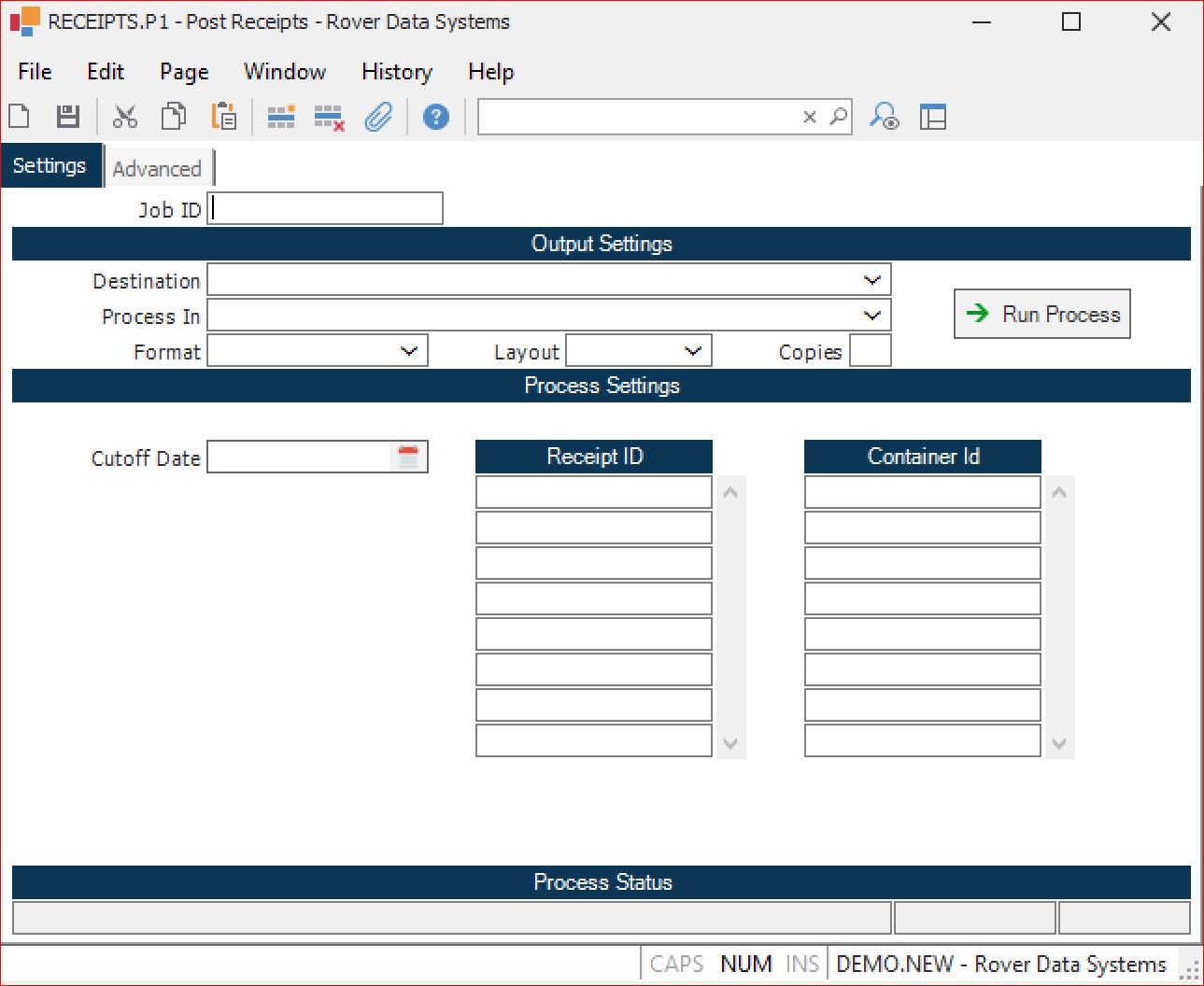
Job ID:
Enter a new or existing Job ID. Use the naming convention: procedure command + B (e.g., RECEIPTS.P1B for the post receipts procedure). Enter an existing ID to amend an existing job.
Destination:
Leave as the default value unless output needs to be sent to a system-defined printer.
Process Settings:
Enter any required values or system variables for the job (optional). Supported variables include:
- @SD – current date
- @WSD – week start date
- @WED – week end date
- @MSD – month start date
- @MED – month end date
- @YSD – year start date
- @YED – year end date
These variables can only be used in service jobs, not in standard procedure execution.
Save the Job:
After entering all required values, save the job run procedure attributes. When the Action window appears, select the Save button. The job is now ready to be added to a batch queue.
# Verification
- [ ] Confirm that batch queues and jobs are defined as intended
- [ ] Ensure users have appropriate access and that jobs run according to schedule
- [ ] Check job history and status for successful execution
# Note
- Only system printers can be used as output destinations for batch jobs
- Use the reset function if a batch queue becomes stuck due to incomplete jobs

# Additional Information
- For more details on any field, use the F1 (help) key while the cursor is in the field
- Contact RoverERP support for assistance with complex batch queue configurations or troubleshooting