
# Understanding Service Actions in RoverERP
Read Time: 2 minute(s)
# Problem Statement
Administrators need to understand the available actions that can be performed on services within the RoverERP service management interface, including starting, stopping, pausing, and configuring services.
# Symptoms
- Uncertainty about which action to use for a specific service management task
- Need to modify or troubleshoot existing services
- Requirement to create new batch services
# Cause
- RoverERP provides multiple service management actions to handle different operational scenarios
- Understanding each action is essential for effective service administration
# Available Service Actions
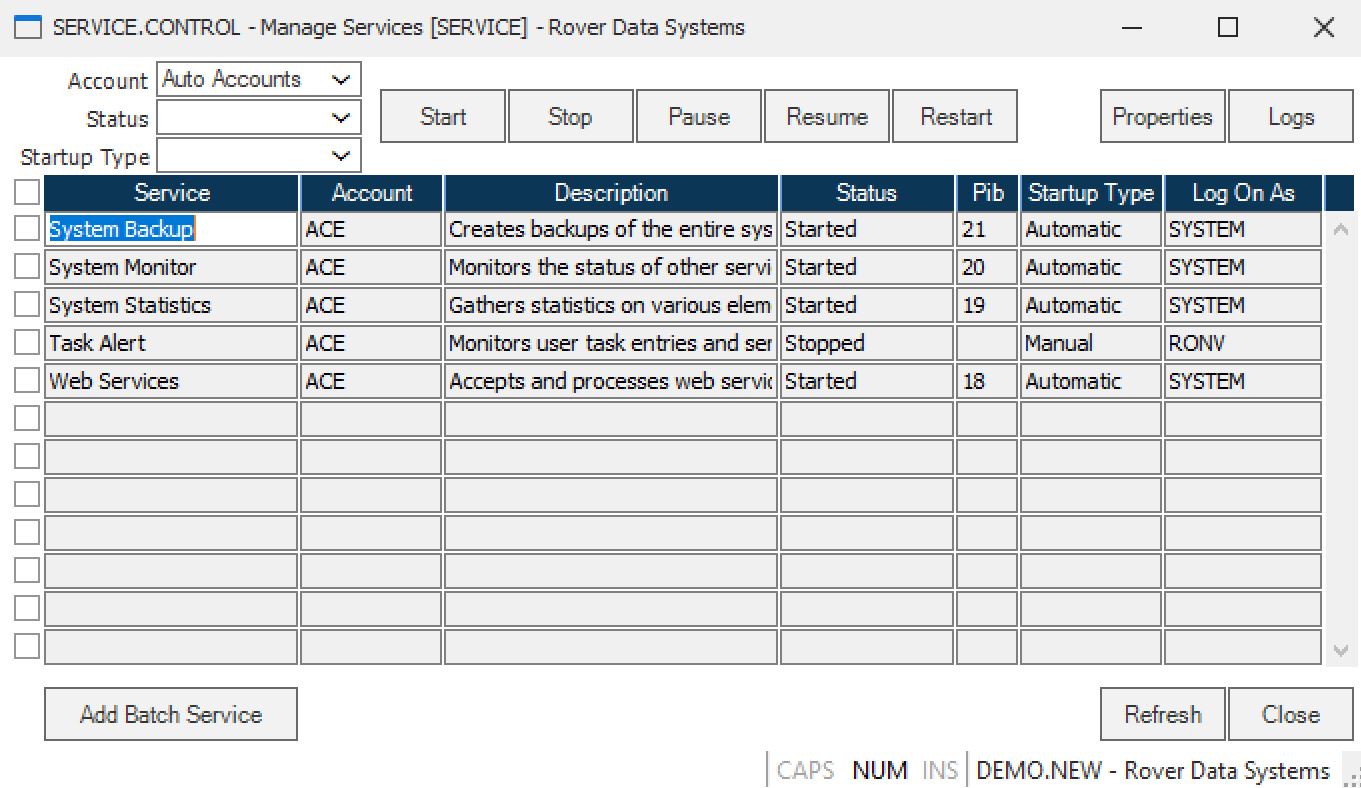
Select the line that contains the service you want to manage, then choose one of the following actions:
Start
This action will start the selected service.
Stop
This action will stop the selected service.
Pause
This action will pause the selected service.
Resume
This action will resume the paused selected service.
Restart
This action will restart the selected service. This option would be used to reset the service as if it were a new service.
Properties
This action will take you to the Service Properties screen (SERVICEPROP.E). Use this action to change properties of an existing service. From SERVICEPROP.E, you can access the other screens necessary in the service job setup.
Add Batch Service
This action will take you to the screen to set up a new service (BS.E). Use this action when a new service needs to be defined and created.
Refresh
This action will refresh the screen with the latest data.
Close
This action will close the active window and exit the procedure.
# Verification
- [ ] Confirm that you can successfully start, stop, pause, and resume services
- [ ] Verify that you can access service properties and modify existing services
- [ ] Ensure that you can create new batch services using the Add Batch Service action
# Note
- Always verify service status after performing any action to ensure the desired result was achieved
- Use the Restart action with caution, as it will reset the service completely
- Use Refresh to ensure you are viewing the most current service status
# Additional Information
- For more detailed configuration options, access the Service Properties (SERVICEPROP.E) screen
- Contact your system administrator or RoverERP support for assistance with complex service configurations