
# Resolving "Invalid Username/Password" Error for a Single User in RoverERP
Read Time: 2 minute(s)
# Problem Statement
A user receives an "Invalid Username/Password" error when attempting to log in to RoverERP. This issue may be related to the user's account status on the Windows host server.
# Symptoms
- A single user cannot log in to RoverERP and receives an "Invalid Username/Password" error
- Other users are able to log in without issue
- The problem persists even when the correct credentials are entered
# Cause
- User accounts for RoverERP are created within RoverERP, but a corresponding Windows account is also created on the host server upon first login
- If the Windows account is locked out or disabled, the user will not be able to log in to RoverERP
# Resolution Steps
Check the User Account on the Windows Host Server
- Open Computer Management on the host server
- Expand the folder Local Users and Groups
- Click on Users
- Locate the user experiencing the issue
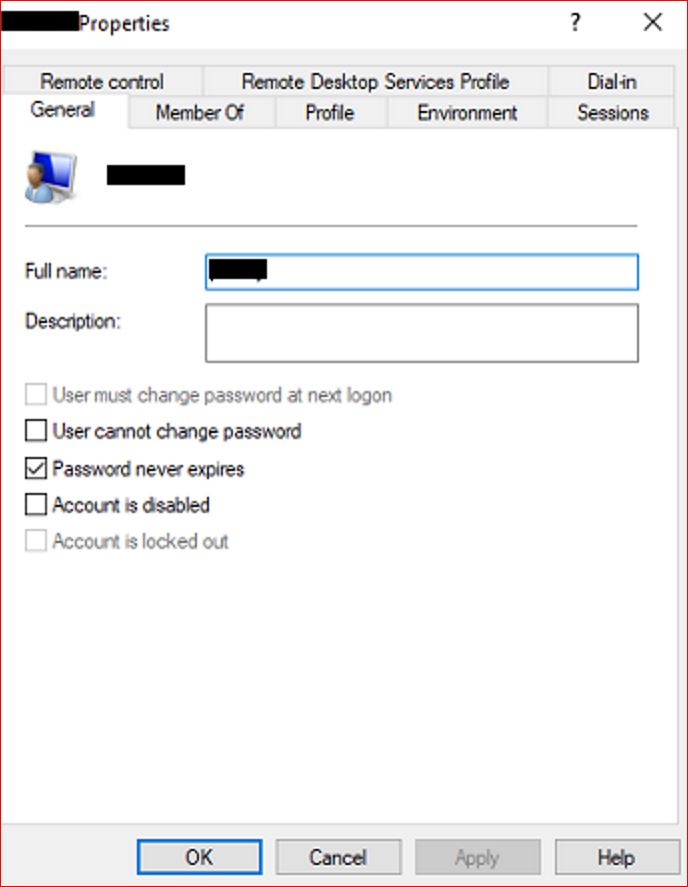
- Right-click the user and select Properties
- Ensure that the account is not locked out or disabled
Unlock or Enable the Account if Needed
- If the account is locked out, uncheck the Account is locked out box
- If the account is disabled, uncheck the Account is disabled box
- Click Apply and OK to save changes
Attempt Login Again
Have the user try logging in to RoverERP once the account status has been corrected.
# Verification
- [ ] The user is able to log in to RoverERP without receiving the "Invalid Username/Password" error
- [ ] The account remains active and accessible
# Note
- For SaaS clients, this issue will be handled by Zumasys Support
- Always verify both RoverERP and Windows account status when troubleshooting login issues
# Additional Information
- If the issue persists after confirming the account is active, contact RoverERP support for further troubleshooting
- Document any changes made to user accounts for audit purposes