
# Managing Procedure Access Rights with SECURITY.E3 in RoverERP
Read Time: 2 minute(s)
# Problem Statement
Administrators need to view and update access rights to specific procedures for all users in RoverERP, ensuring appropriate security and user permissions.
# Symptoms
- Need to review which users have access to a particular procedure
- Requirement to update, add, or remove user access rights for a procedure
- Desire to manage user security settings efficiently from a single screen
# Cause
- Changes in staff roles, responsibilities, or security policies require updates to procedure access rights
- New users may need to be granted access, or existing users may need their permissions modified
# Resolution Steps
Access SECURITY.E3
Navigate to: Security > SECURITY.E3.
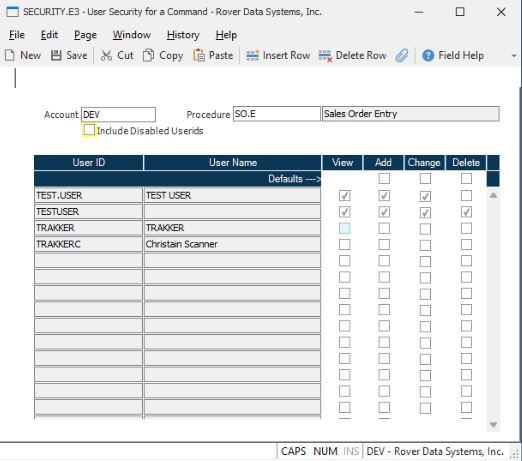
Specify Account and Procedure
Enter the name of the account and the procedure for which you want to manage access rights.
Review Current User Access
A list of all users with current access to the specified procedure will be displayed.
Update Access Rights
- Modify the access rights for existing users as needed.
- Add additional users who require access to the procedure.
- Remove users who should no longer have access.
Save Changes
After making the necessary updates, save the procedure. All user security settings for the specified procedure will be updated accordingly.
# Verification
- [ ] Confirm that the updated access rights are reflected for all users
- [ ] Ensure that only authorized users have access to the specified procedure
# Note
- Use SECURITY.E3 to efficiently manage and audit user access to procedures across the organization
- Regularly review and update access rights to maintain security compliance
# Additional Information
- For complex security configurations or bulk updates, consult RoverERP support
- Document changes to user access for audit and compliance purposes