
# How to Check Software Versions in RoverERP
Read Time: 1 minute(s)
# Problem Statement
Users need to identify the current software versions of the RoverERP client, ACE, M3, and database (QM) components.
# Symptoms
- Uncertainty about which versions of RoverERP components are installed
- Need to verify software versions for troubleshooting, support, or compliance purposes
# Cause
- Software version information is required for support, upgrades, or compatibility checks
# Resolution Steps
Access the Main Menu
Open RoverERP and navigate to the main menu.
Go to Help > About
Click on Help in the menu bar and select About from the dropdown menu.

View Version Information
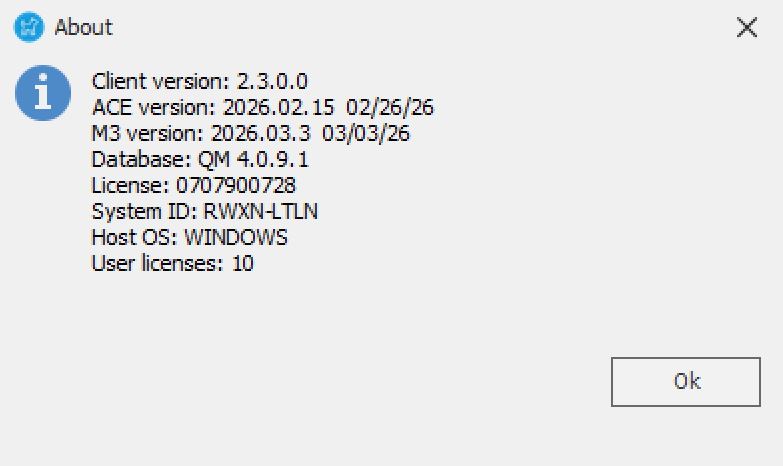
A dialog box will appear displaying the following version details:
- Client version
- ACE version
- M3 version
- Database (QM) version
# Verification
- [ ] Confirm that the dialog box displays all relevant version numbers
- [ ] Record or screenshot the version information as needed for support or documentation
# Note
- Always provide complete version information when contacting support or planning upgrades
- Regularly check for updates to ensure you are running supported versions
# Additional Information
- If you are unable to access the version information, contact your system administrator or RoverERP support for assistance