
# Using SYSTEM.D: The System Dashboard in RoverERP
Read Time: 2 minute(s)
# Problem Statement
Administrators need a centralized overview of the current and historical state of the RoverERP system, including user activity, resource usage, and system logs.
# Symptoms
- Need to monitor system health, user activity, and resource utilization
- Requirement to access logs for troubleshooting or audit purposes
- Desire to manage user sessions directly from a dashboard
# Cause
- Ongoing system administration and monitoring require access to real-time and historical system data
# Resolution Steps
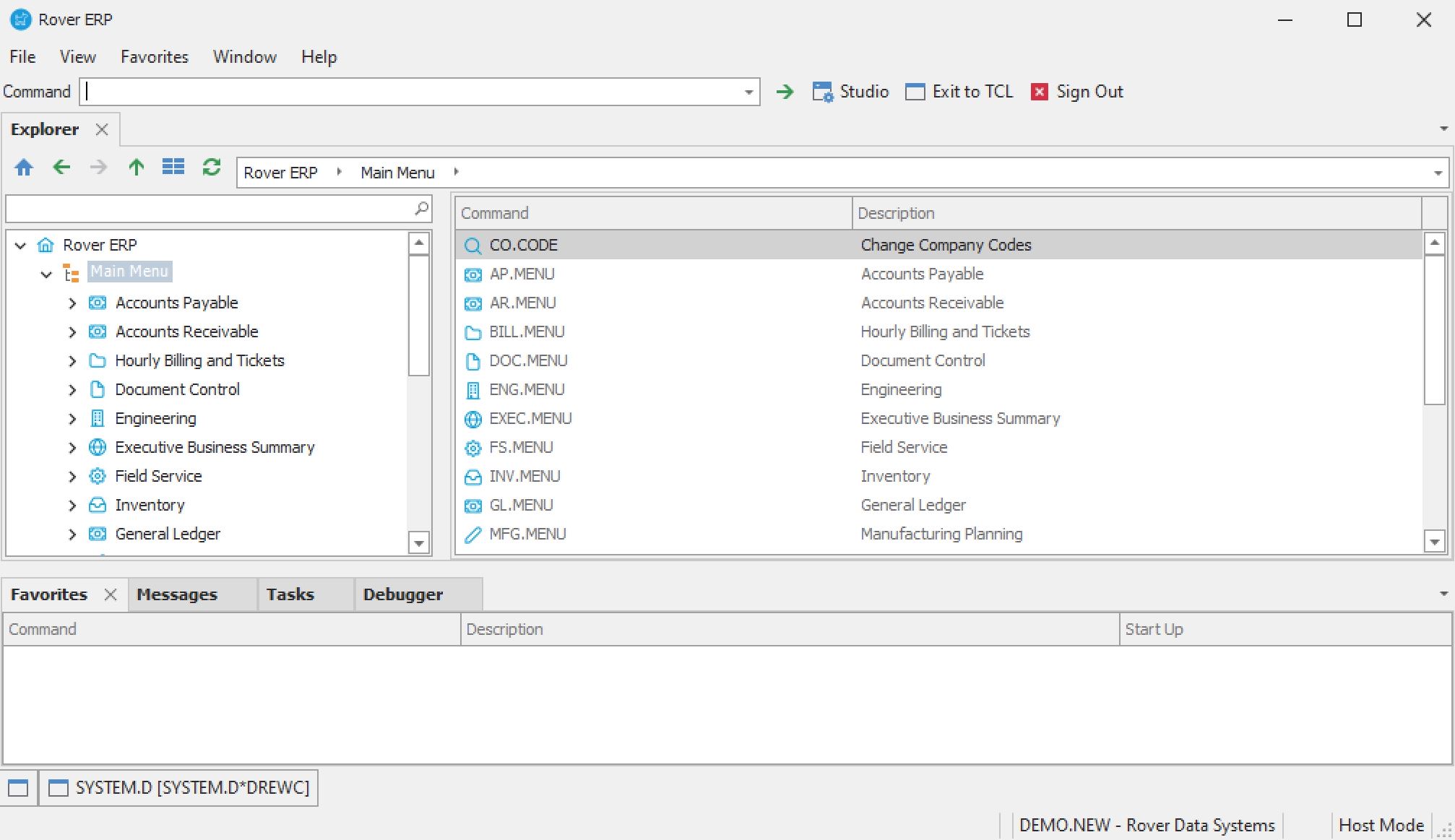
Access SYSTEM.D
Navigate to: System > SYSTEM.D (System Dashboard).
Review System Overview
The dashboard provides the following information:
- Users currently logged in
- Workspace usage
- Memory usage
- Storage usage
- User logs
- Procedure logs
- Runtime error logs
- System error logs
Manage User Sessions
Go to the User List page within SYSTEM.D. View all users currently logged in. Options available for each user:
- Logoff
- Reset
- Remove
- Tandem onto the pib (process in background) of each user
Frequency of Use
Use the System Dashboard as required for monitoring, troubleshooting, or routine administration.
# Prerequisites
- The historical information displayed is generated by the System Statistics Service (SYSTEMSTATS)
- Ensure SYSTEMSTATS is set up and running continuously to avoid gaps in historical data
# Verification
- [ ] Confirm that real-time and historical system data is displayed accurately
- [ ] Ensure that user session management functions (logoff, reset, remove, tandem) work as expected
# Note
- Continuous operation of SYSTEMSTATS is essential for complete historical records
- Use SYSTEM.D regularly to maintain system health and respond promptly to issues
# Additional Information
- For setup or troubleshooting of SYSTEMSTATS, consult your system administrator or RoverERP support
- Document any administrative actions taken for audit and compliance purposes