
# Using the Related AP Items Function in AP.E for Credit Card Payments and Invoice Consolidation
Read Time: 3 minute(s)
# Problem Statement
Users need to manage credit card payments to vendors and consolidate multiple receipts or invoices into a single accounts payable (AP) invoice in RoverERP.
# Symptoms
- Difficulty tracking which vendor invoices were paid by credit card
- Need to create a single AP invoice for multiple receipts or invoices
- Uncertainty about how to use the Related AP Items function in AP.E
# Cause
The Related AP Items function in AP.E was designed to handle credit card payments and invoice consolidation, but users may not be familiar with its operation or benefits.
# Resolution Steps
# Example 1: Handling Credit Card Payments
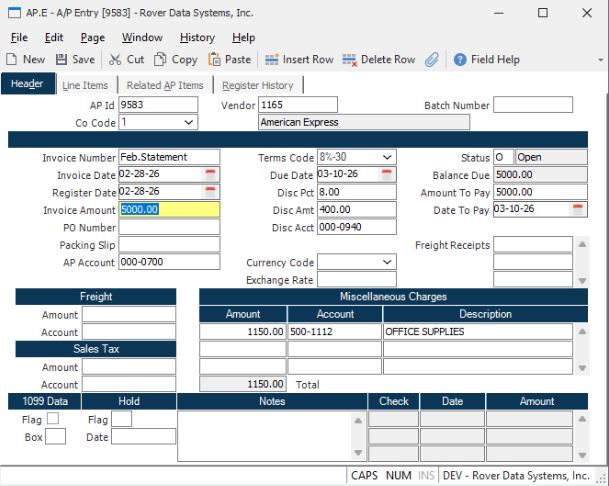
1. Create a New Invoice for the Credit Card Provider
In AP.E, create a new invoice for the credit card provider.
- Leave the AP ID field blank; an AP ID will be assigned automatically when the record is saved.
2. Enter Related Vendor Invoices
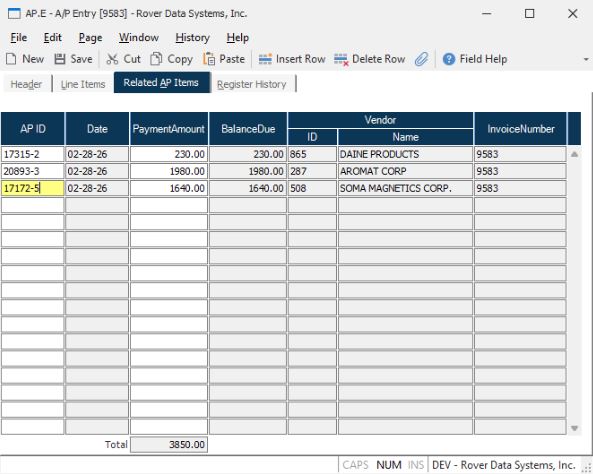
Navigate to the Related AP Items tab.
- Enter the AP IDs of the vendor invoices that were paid on the credit card statement.
- The AP IDs can be in either "invoiced" or "accrual" status.
3. Adjust Payment Amounts if Needed
- You may change the payment amount for each related item, but the amount cannot exceed the open balance.
- If there is a difference between the total related amount and the statement amount, apply the difference to a GL account (e.g., office supplies as a miscellaneous charge).
# Example 2: Creating a Single Invoice for Multiple Receipts
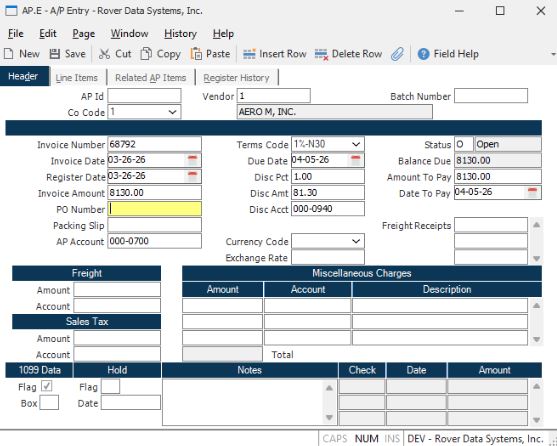
1. Create a New Consolidated Invoice
In AP.E, leave the AP ID field blank.
- Enter the vendor number, invoice number, date, and amount for the new consolidated invoice.
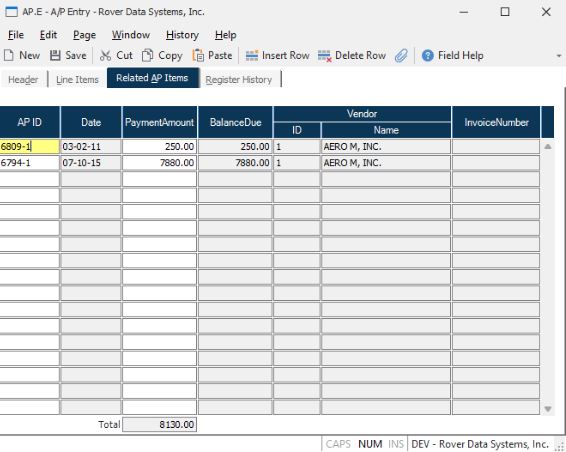
2. Add Related Receipts or Invoices
On the Related AP Items tab, enter the AP IDs or receipts you wish to consolidate into this single invoice.
3. Save the Record
When the record is saved:
- The IDs entered on the Related AP Items tab will be flagged as paid.
- The check number for these items will be the AP ID of the newly created consolidated invoice.
4. Verify Status
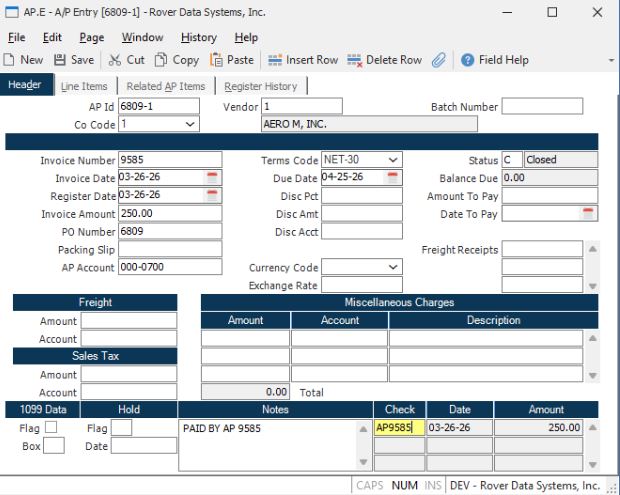
- If the invoice is paid in full, its status will be changed to "closed."
# Verification
- Confirm that all related AP items are flagged as paid and reference the correct consolidated AP ID.
- Verify that any differences between statement and related amounts are properly expensed to the appropriate GL account.
- Ensure that the status of fully paid invoices is set to "closed."
# Notes
- The Related AP Items function streamlines the process of reconciling credit card payments and consolidating multiple receipts or invoices into a single AP record.
- Always review the amounts and GL postings for accuracy before finalizing.
# Additional Information
- For further assistance or complex scenarios, contact RoverERP support.
- Document all consolidated payments and related items for audit and reconciliation purposes.